
Match from Coretax instead of typing numbers
How a VAT-registered business (PKP) downloads Coretax's Keluaran and Masukan lists, uploads them to fill in tax invoice numbers and vendors' tax invoices, and handles what changed in Coretax.
Coretax lists every tax invoice you issued (Faktur Pajak Keluaran) and every one your vendors issued to you (Faktur Pajak Masukan). Instead of copying numbers from those lists one by one, you can download a list and upload it to Adimone: it finds the record each row belongs to, shows you what it found, and records the matched ones when you say so. Typing a number by hand still works for anything the list can't settle.
Before you start
You need your business set up as a VAT collector (see Issue tax invoices), your Coretax account, and permission to manage tax invoices in Adimone. Matching never changes anything in Coretax; it only records here what Coretax already shows.
Match the Keluaran list
The Keluaran list fills in the 17-digit numbers Coretax gave your tax invoices.
- In Coretax, open e-Faktur, then Pajak Keluaran (Output Tax).
- Filter the list by the tax period (month) you want to match.
- Choose Export and save the list as CSV. An XLSX works too, but Coretax sometimes saves it without rows; then download the CSV.
- In Adimone, open Tax invoices and choose Match from Coretax. On an export's page, the same button sits in the last step, as the alternative to typing the numbers.
- Choose the file. Adimone shows every row of the list by group (see What each group means); nothing is recorded yet.
- Set Approved on: the list has no approval date, so the numbers are recorded as approved on this day. A tax invoice dated later takes its own date.
- Choose Record. Adimone records the matched rows and shows the list again, so you see what still needs you.
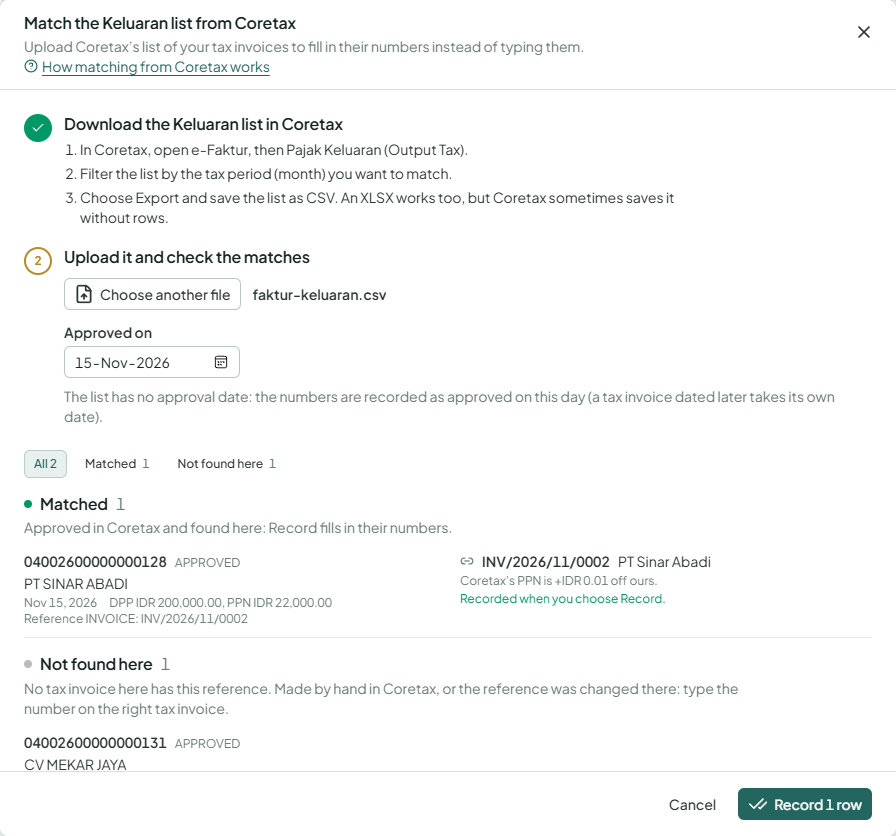
A row matches a tax invoice by its Reference: the invoice number Adimone put in the export file. Rows you made by hand in Coretax often carry a label such as INVOICE: before the number; Adimone ignores it. The buyer's NPWP must agree when the customer has one, and the amounts must agree within a cent for the DPP and Rp1 a line for the PPN.
Match the Masukan list
The Masukan list records your vendors' tax invoices on your bills, with the month you credit their VAT in.
- In Coretax, open e-Faktur, then Pajak Masukan (Input Tax).
- Filter the list by the tax period (month) and choose Export, as CSV.
- In Adimone, open Input VAT (under Purchases) and choose Match from Coretax.
- Choose the file, check the groups, and choose Record.
A row matches a bill still waiting for its tax invoice by the vendor's NPWP, a date within 31 days of the bill's, and the amounts (DPP within a cent, PPN within Rp1 a line, since vendors round per line). The vendor's own reference, when there is one, only breaks ties. The credit month comes from the list's Period credit: credit or leave uncredited each tax invoice in Coretax first, then download the list.
What each group means
- Matched: found here and recorded when you choose Record.
- Already recorded: nothing to do.
- Amounts differ: a record is near, but its amounts or the NPWP differ. The row shows by how much Coretax differs from Adimone. Check both sides, correct the wrong one (often the bill or the customer's NPWP), then upload again or type the number.
- Not found here: no record fits. For Keluaran, the tax invoice was made by hand in Coretax or its reference changed; for Masukan, the bill isn't posted yet or the vendor's NPWP differs.
- Number already used: the number is already on another record here, which the row names.
- More than one fit: record it by hand on the right one.
- Changed in Coretax: canceled, replaced, uncredited or waiting for an approval. Each row says what to do, and the ones Adimone can record itself are recorded.
- Can't be recorded: the row says why: a month in a fiscal year marked filed, a credit month outside the 3 months allowed, or a number that isn't the tax office's 17 digits.
- Not final in Coretax: still a draft, being signed, deleted, or (Masukan) not credited yet. Upload the list again once they are final.
A tax invoice can be canceled or replaced only while its month's SPT Masa PPN can still be filed or corrected. Adimone says so beside these rows.
Waiting for the buyer
Once a buyer has credited (or marked uncredited) one of your tax invoices, Coretax doesn't cancel or replace it at once: it shows WAITING_FOR_CANCELLATION or WAITING_FOR_AMENDMENT until the buyer approves. Meanwhile it still counts in your draft SPT Masa PPN; if the buyer approves after you filed, correct that return.
Adimone shows the wait as the tax invoice's next step, and the round trip on Tax invoices counts them:
- Ask the buyer to approve the cancellation or replacement in Coretax, under Pajak Masukan.
- Upload the Keluaran list again later: a row now CANCELED records the tax invoice canceled, and the wait ends.
Without a list, record it by hand: open the tax invoice's menu and choose Coretax shows it waiting for the buyer, and The buyer approved it once it's over.
A vendor's request waiting on you
It works the same the other way round. When a vendor cancels or replaces a tax invoice you credited, the Masukan list shows it waiting for your approval, and Input VAT says how many wait. For each:
- Approve it in Coretax, under Pajak Masukan.
- For a cancellation, void the bill in Adimone if the sale is off. For a replacement, record the replacement's number with Correct, or upload the Masukan list again.
Take input VAT out of its credit month
When Coretax shows a vendor tax invoice you recorded as uncredited, invalid, canceled or replaced, its VAT can't stay credited. Matching the Masukan list does it for you; by hand, choose Take out on the bill's row in Input VAT and confirm. The bill waits for a tax invoice again, with its debit notes. A month in a fiscal year marked filed can't be changed; if that month's return is filed, correct it in Coretax too.