
Issue tax invoices (e-Faktur) through Coretax
How a VAT-registered business (PKP) exports its tax invoices for Coretax, uploads them, types back the tax office's numbers, and handles refusals, voided invoices and returns.
A business registered for VAT (Pengusaha Kena Pajak, PKP) issues a tax invoice (faktur pajak) for each sale that carries VAT, through the tax office's Coretax system. Adimone makes the tax invoice when you post the sales invoice and prepares the file Coretax imports. The upload and the signing happen in Coretax, so the trip has a part outside Adimone: this article walks through all of it.
Before you start
You need:
- Your business's NPWP in the business details (16 digits, or the older 15).
- Your Coretax account, with the electronic signature certificate you sign tax invoices with.
- The Indonesia rule pack applied in Taxes, so the VAT codes carry their transaction codes.
Then tell Adimone you are a VAT collector:
- In Taxes, open Settings.
- Under VAT collector (PKP), turn on The business is a VAT collector (PKP).
- Enter PKP since: the date on your PKP confirmation letter.
- If you issue from a branch, enter Place of business (TKU): the 6 digits after your NPWP in your NITKU. Leave it empty for the head office.
- Choose Save PKP details.
From then on, every sales invoice with VAT that you post gets a tax invoice in Tax invoices, under Sales. Invoices dated before PKP since don't. All lines of one invoice must share one VAT treatment: an invoice mixing standard VAT with exempt or non-VAT lines is refused at posting, so put those lines on separate invoices.
The round trip
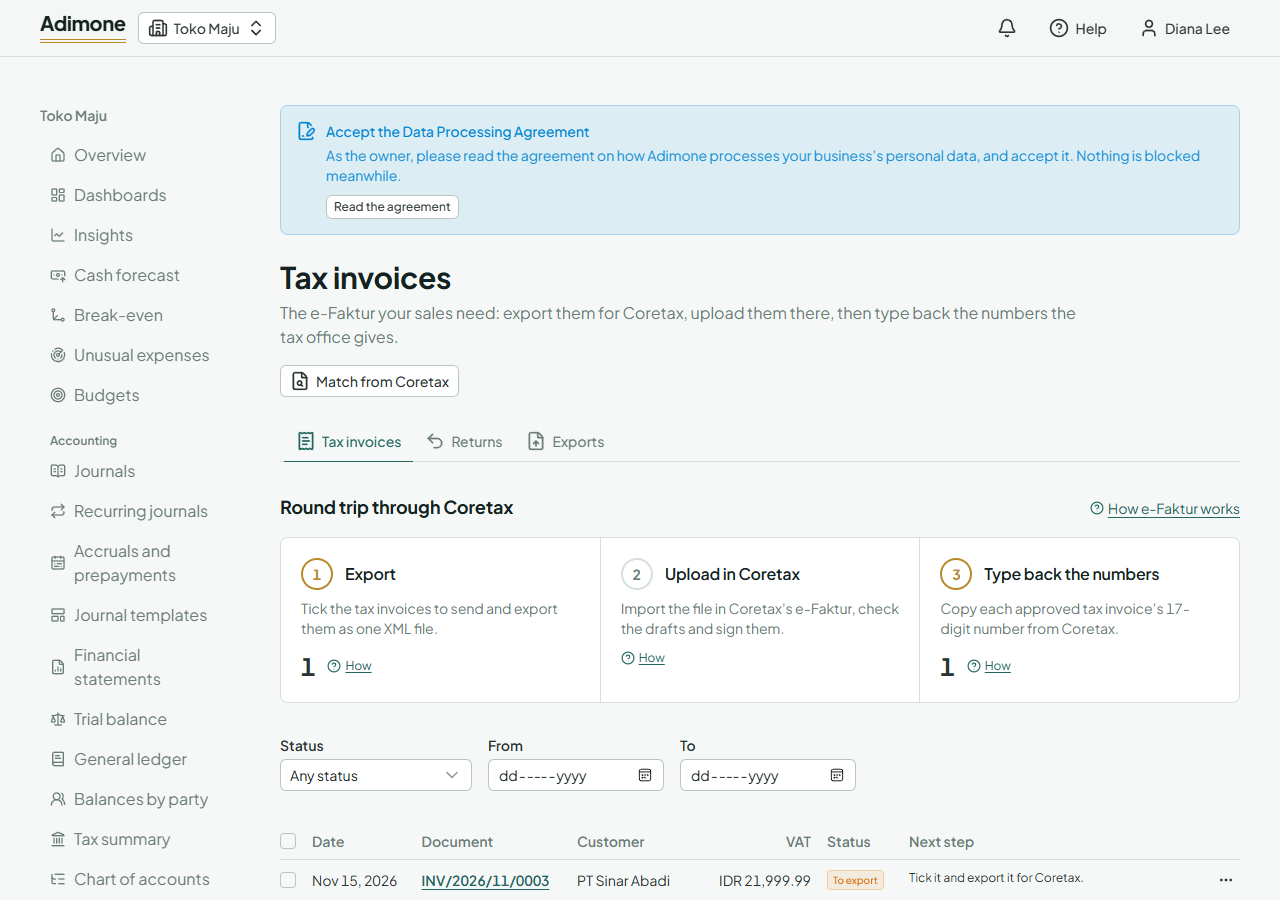
Tax invoices opens on the round trip through Coretax, with the number of tax invoices waiting at each step:
- Export: tax invoices you haven't sent yet.
- Upload in Coretax: done in Coretax, with the file from step 1.
- Type back the numbers: tax invoices exported and waiting for the number Coretax gives.
Choose a step's number to list those tax invoices. Each tax invoice in the list also says its Next step, and the home page reminds you while any step waits.
Export the tax invoices
- In Tax invoices, tick the tax invoices marked To export (or tick the box in the header to take all of them).
- Choose Export.
Adimone checks that everything Coretax needs is there: your NPWP, your PKP date and, for an invoice in another currency, the tax office's exchange rate (Kurs Pajak) for its week (see Enter the weekly Kurs Pajak). It then opens the export, where the rest of the trip continues. An export holds up to 200 tax invoices. Returns aren't exported: your buyer makes them (see Returns).
Units on tax invoices
Coretax names every line's unit by its own code, and each code is either for goods or for services (Lainnya, others, takes both). Coretax rejects the whole file when one line in it has a unit that doesn't fit its kind, so Adimone picks a fitting unit for every line before it writes the file:
- Each of your units of measure is matched to a Coretax unit by its name or code: Piece or PCS to Piece, Kilogram to Kilogram, Hour to Jam.
- A goods line (any item that isn't a service) whose unit has no goods match exports Unit. A service line whose unit has no service match exports Lainnya.
To check or change the matches:
- In Taxes, open Settings.
- Under Units on tax invoices, each unit shows what its goods and service lines export.
- Where the match is wrong or missing, open the unit's list and choose the Coretax unit. Matched by name at the top of the list goes back to the match.
Exports made after a change use it; a file already downloaded keeps what it had, so download it again before you upload it.
Goods and service codes
Each Coretax line also carries a 6-digit goods or service code from Coretax's list. Without one, the line exports 000000, the generic code, which Coretax accepts. To give an item its code:
- Open the item in Items.
- Under its accounting, in Goods or service code (e-Faktur), type a word or part of the code, such as bread or 1905, and pick the code. A service item searches Coretax's service codes; any other item its goods codes.
- Save the item.
Its sales invoice lines then export that code. Changing an item from a service to goods (or back) asks for a code from the other list.
Upload the file in Coretax
On the export's page:
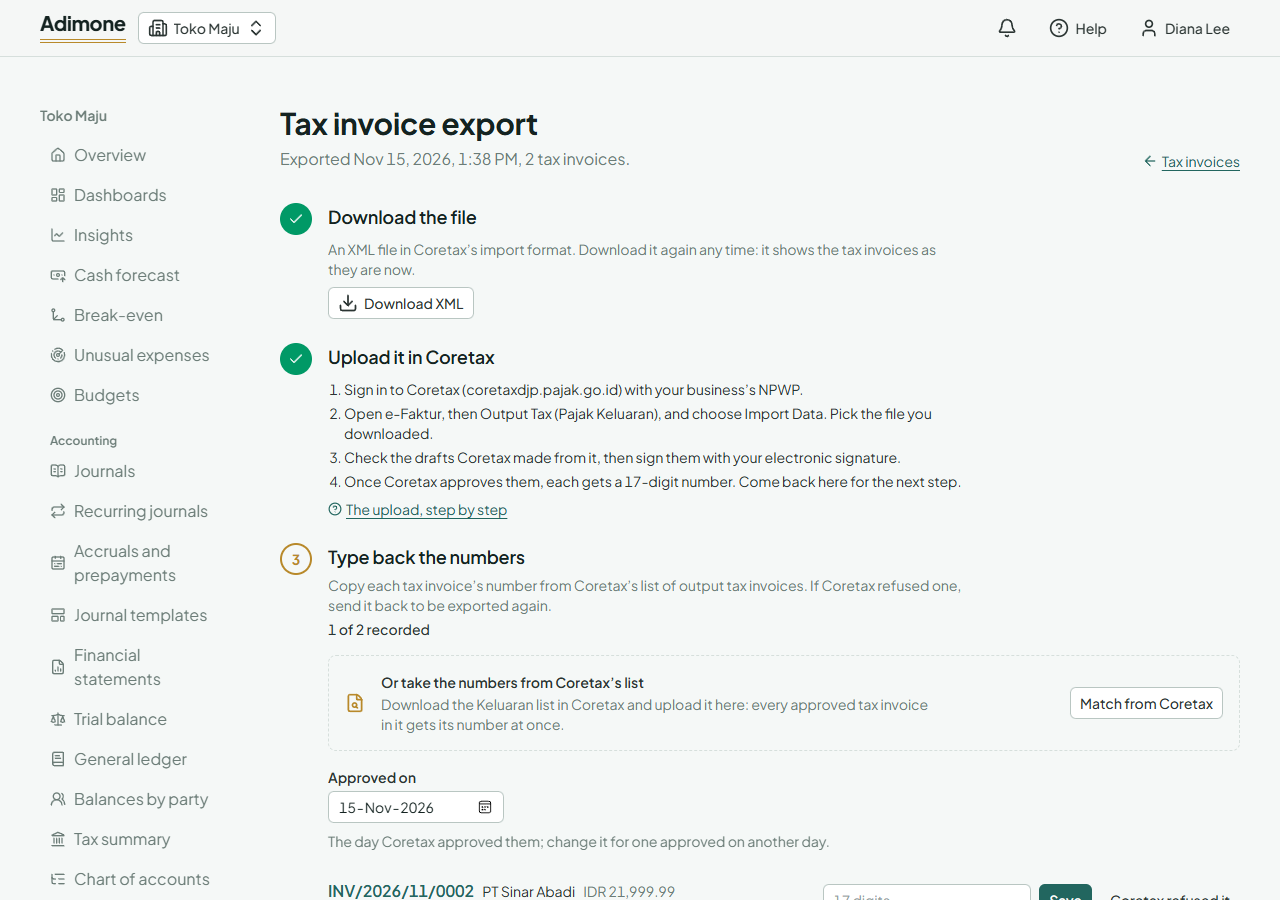
- Choose Download XML. You can download it again at any time; it always shows the tax invoices as they are now.
- Sign in to Coretax (coretaxdjp.pajak.go.id) with your business's NPWP.
- Open e-Faktur, then Output Tax (Pajak Keluaran), and choose Import Data. Pick the file you downloaded.
- Check the drafts Coretax made from it, then sign them with your electronic signature.
- Back in Adimone, choose I’ve uploaded it, so the export shows the next step.
Type back the numbers
Once Coretax approves a tax invoice, it gives it a 17-digit number. Coretax lists them under Output Tax.
- On the export's page, set Approved on to the day Coretax approved them.
- Type each tax invoice's number into its row and choose Save.
Coretax gives each number once, so Adimone refuses a number already recorded on another of your tax invoices and names the invoice that has it: check the number against Coretax before you change either.
Rather than typing them, you can download Coretax's Keluaran list and upload it with Match from Coretax, on the export's page or on Tax invoices: every approved tax invoice in it gets its number at once (see Match from Coretax).
The export counts the numbers recorded, and shows Done when every tax invoice in it has its outcome. You can also record a single number from the list: open the tax invoice's menu and choose Record the number. The number then shows on the invoice's page.
When Coretax refuses one
If Coretax refuses a tax invoice, for example for a wrong customer NPWP, choose Coretax refused it on its row (or in its menu in the list) and note what Coretax said. It goes back to To export. Correct the cause, such as the customer's tax ID or address, and export it again: the new file shows the corrected details.
Voided invoices: cancel or replace
Voiding a sales invoice whose tax invoice wasn't exported yet cancels the tax invoice too. Once it was exported, the tax invoice is marked To cancel, because only Coretax can cancel it:
- Cancel it: cancel the tax invoice in Coretax, then open its menu in Adimone and choose Record it canceled in Coretax.
- Replace it: when you voided the invoice to correct it, post the corrected invoice first. Then, on the original tax invoice, choose Replace with the corrected invoice’s and pick the new tax invoice. It is exported as a replacement (faktur pengganti) that names the original's number.
Once the buyer has credited the tax invoice in Coretax, the cancellation or replacement waits for the buyer's approval there; Adimone shows that wait as its next step (see Waiting for the buyer). Either is possible only while the month's SPT Masa PPN can still be filed or corrected.
If the invoice was voided after export but before you recorded Coretax's number, record the number first if Coretax approved it, then cancel or replace it.
Returns
A credit note for an invoice with a tax invoice makes a return: a nota retur for goods that came back, a nota pembatalan for a cancelled service (one of each when the credit note has both). Coretax has no import for returns: your buyer makes the return in its own Coretax, from the tax invoice it received, once that tax invoice has Coretax's number. Coretax then notifies you (Portal Saya → Notifikasi Saya). Check the buyer's return against your credit note and approve or reject it under Output Tax Returns (Retur Pajak Keluaran). A return counts in the VAT return of the month of its return date, not the original invoice's. The Returns tab walks you through each step: see Returns on your tax invoices.