Record your vendors' tax invoices (input VAT)
How a VAT-registered business (PKP) records the tax invoice each vendor issues, chooses the month to credit its VAT in, and reads the input VAT credited by month.
A business registered for VAT (Pengusaha Kena Pajak, PKP) may credit the VAT it pays its vendors (pajak masukan) against the VAT it charges, but only with the vendor's tax invoice (faktur pajak) in hand. The vendor makes that tax invoice in Coretax, often days after the sale, so Adimone keeps each bill's input VAT waiting until you record it. This article walks through the whole trip.
Before you start
Tell Adimone you are a VAT collector: in Taxes, Settings, turn on The business is a VAT collector (PKP) and enter PKP since (see Issue tax invoices). From then on, every vendor bill with VAT you can reclaim that you post gets an input VAT record. A reverse charge has no vendor tax invoice, so it doesn't.
Record the vendor tax invoice
If the vendor's tax invoice came with the bill, type it in when you post:
- On the bill, under Vendor’s tax invoice, type the 17-digit Tax invoice number and the Tax invoice date from the vendor's e-Faktur.
- Choose Post bill.
The input VAT is recorded at once and credited in the tax invoice's month. Leave the fields empty to record it later.
To record it later, or to choose another month:
- Open Input VAT (under Purchases), or the bill itself.
- Choose Record tax invoice on the bill's row.
- Type the number and date, and choose the month to Credit the VAT in: the tax invoice's own month, or up to 3 months after.
- Choose Record tax invoice.
A vendor's tax invoice number is recorded on one bill only: Adimone refuses a number already on another bill and names that bill, which usually means a typo or the wrong vendor's paper. A debit note shares its bill's number, and a voided bill frees its number.
Rather than typing each one, you can download Coretax's Masukan list and upload it with Match from Coretax on Input VAT: every vendor tax invoice credited there is recorded on its bill, with its credit month (see Match from Coretax). It also takes out of its month any input VAT Coretax shows uncredited, canceled or replaced, and flags a vendor's cancellation or replacement waiting for your approval.
If you typed something wrong, choose Correct and record it again. A month in a fiscal year you've marked as filed can't be changed.
Bills waiting for a tax invoice
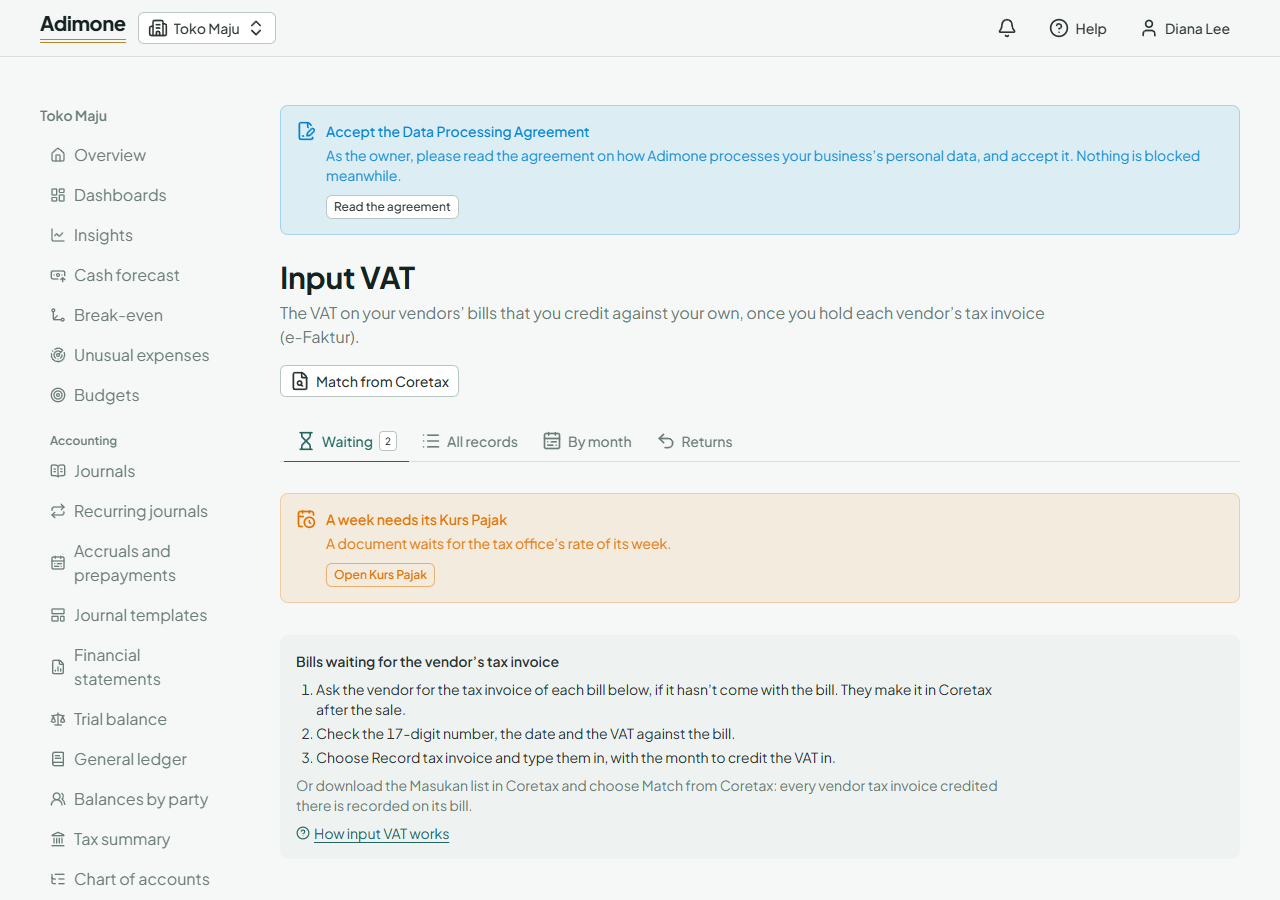
Input VAT opens on Waiting: the posted bills whose vendor tax invoice isn't recorded yet. The home page and the menu show how many wait. For each one:
- Ask the vendor for the tax invoice, if it hasn't come with the bill.
- Check its number, date and VAT against the bill.
- Record it as above.
A debit note that takes back part of a bill takes its bill's tax invoice, so it waits with its bill and is recorded with it. Once that tax invoice is recorded, the debit note also makes a return you submit in Coretax: the Returns tab guides it (see Returns on your vendors' tax invoices). Voiding a bill cancels its input VAT.
The input VAT by month
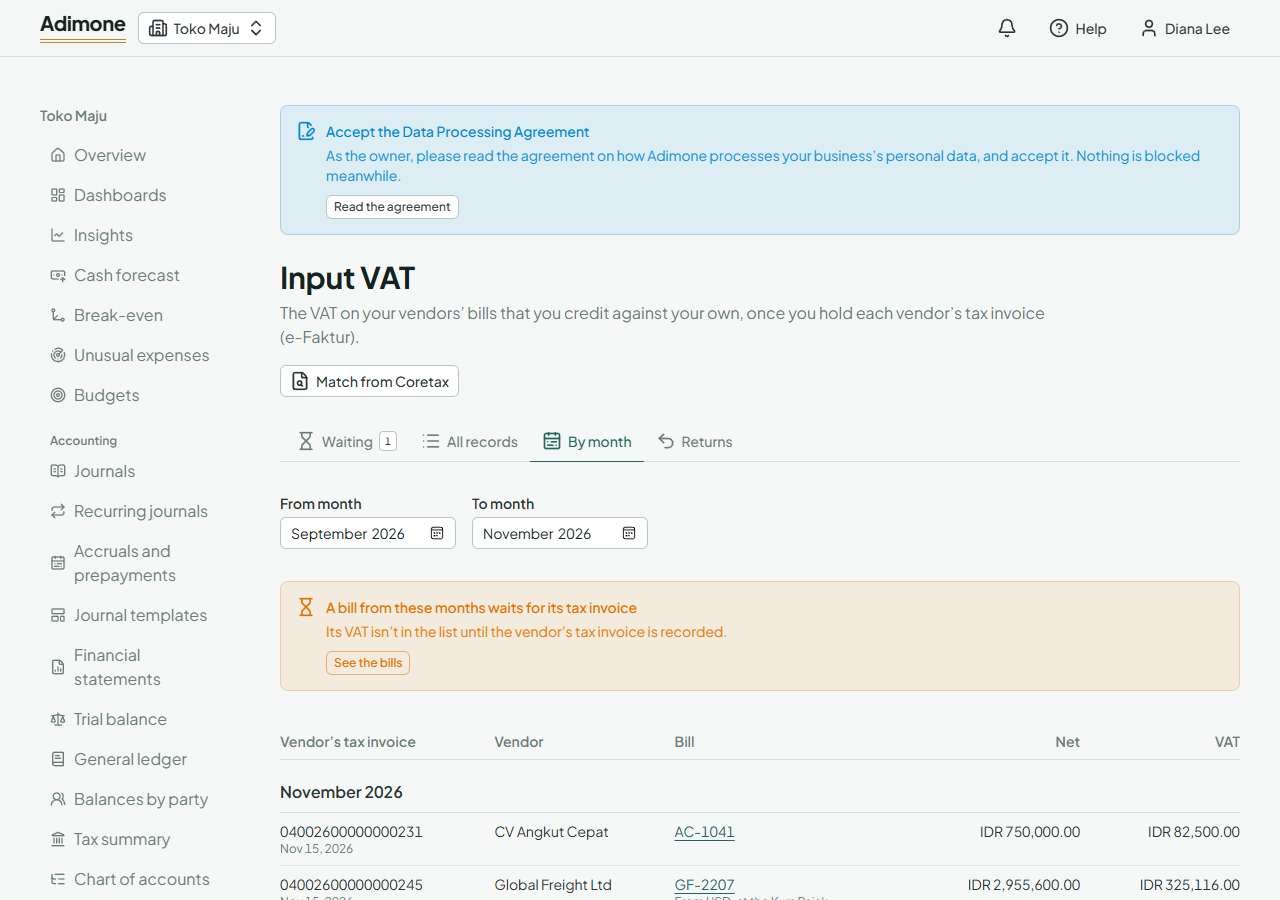
By month lists the input VAT credited in the months you choose (up to 12), as the VAT return lists it: each vendor tax invoice with its number, date, vendor, net amount and VAT, grouped by the month it is credited in, with the totals. Debit notes show as negative amounts. Amounts in another currency are converted at the tax office's rate (Kurs Pajak) of the tax invoice's date; if that week's rate isn't entered, enter it first (see Enter the weekly Kurs Pajak). A warning shows how many bills from those months still wait for their tax invoice: their VAT isn't in the list until it is recorded.