
Export reports
Save a report as a PDF, an Excel workbook or a CSV file, and download your exports again for a week.
Every report can be saved as a file: the financial statements, the trial balance, the general ledger, an account's activity, balances by party, the receivables and payables agings, and the lists of customers and vendors and of items. The file shows what you see on the screen, with the same dates and filters, and only what you are allowed to see.
Export a report
- Open the report and set its dates and filters.
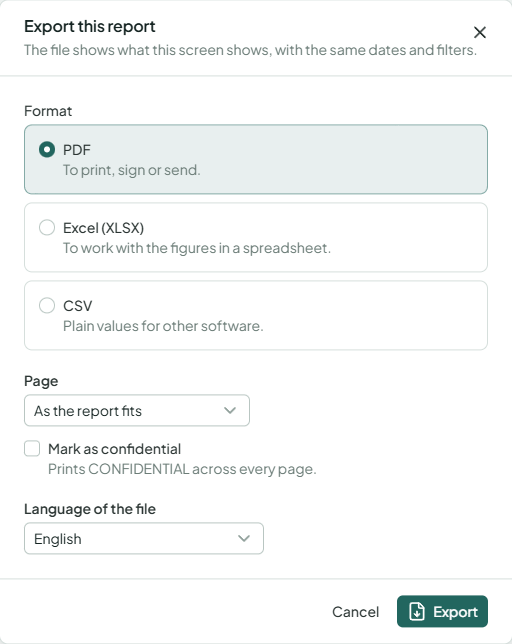
- Choose Export.
- Pick a format:
- PDF, to print, sign or send. Under Page, keep As the report fits or pick portrait or landscape. Tick Mark as confidential to print CONFIDENTIAL across every page.
- Excel (XLSX), to work with the figures in a spreadsheet: amounts are numbers, dates are dates.
- CSV, plain values for other software.
- Pick the Language of the file, then choose Export.
- When the file is ready, choose Download.
Large reports take a moment. You can close the window while the file is being made: it waits for you under My exports.
The customers and vendors list and the items list export in the same columns as their import templates, so a file you export can be changed and imported again.
My exports
My exports lists the reports you exported in the last week, newest first, with each file's size and number of rows. Choose Download to download a file again. Files are removed after a week; export the report again to get a new one. Other members don't see your exports.
When an export fails
- Too many rows: a report is limited in size. Narrow the dates or filters.
- Too long for a PDF: export it as Excel or CSV, or narrow the dates or filters.
- No longer have access: your role changed after you asked for the export.
- You already have 3 exports being made: wait for one to finish.