
Pay vendors
Record money you paid a vendor, settle their bills oldest first, keep the rest as a prepayment, apply prepayments and debit notes to bills later, reverse a payment, and void one.
A payment records money you paid a vendor. Releasing it takes the money out of your cash or bank account and lowers what you owe the vendor. The payment settles their vendor bills. Whatever no bill takes stays as a prepayment, your credit with the vendor, until you apply it.
Payments are on every plan, the Free plan included. Where the plan includes purchasing, releasing a payment also issues a numbered payment voucher. On the Free plan a payment has no number or voucher: the list names it by its reference and date.
Record a payment
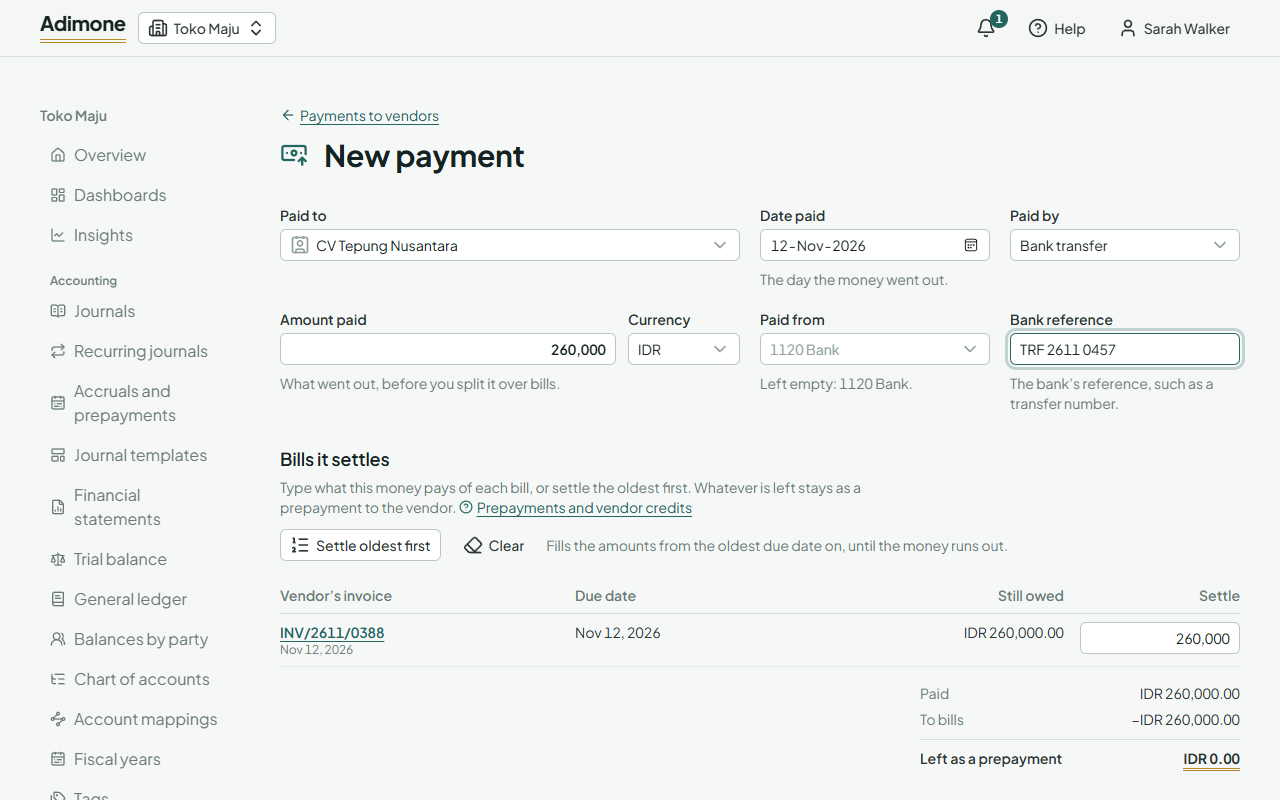
- Open a posted bill and choose Pay this bill, or go to Payments to vendors in Purchasing and choose Record a payment. From a bill, the payment starts with what the bill still owes, settling it.
- Pick the vendor in Paid to.
- Fill in Date paid (the day the money went out), Paid by and Amount paid. The currency is the vendor's; change it for a payment in another currency.
- Paid from is the cash or bank account the money left, or the company card it was paid with. Left empty, cash comes from the account set for cash and the other methods from the one set for the bank, in Account mappings.
- Add the Bank reference, such as a transfer number.
Only people who see purchase prices record payments, since the amounts are purchase costs (Who sees purchase prices).
Choose the bills it settles
Under Bills it settles, the vendor's open bills in the payment's currency are listed by their invoice number, the oldest due date first, with what each still owes.
- Type what the money pays of each bill, or choose Settle oldest first to fill them from the oldest on until the money runs out.
- A bill can't take more than it owes, and together they can't take more than was paid.
- The total under the list shows what goes to bills and what is Left as a prepayment.
Choose Save draft to finish later, or Release payment.
Release the payment
Release payment takes the money out of the account and settles the bills. Only people with the release permission see the button; others save the draft for them to check. If the owner chose that someone else must check payments, the person who recorded it can't release it.
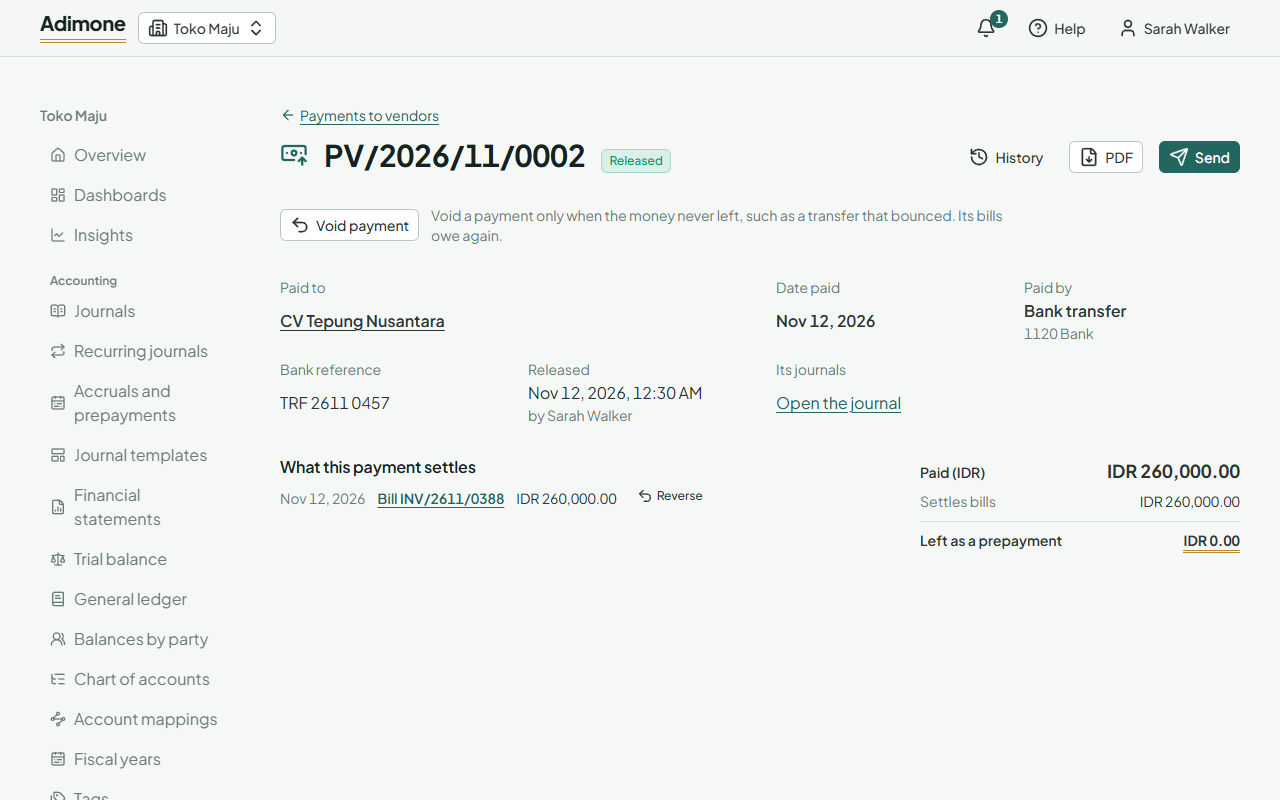
- PDF opens the issued payment voucher; Send emails it to the vendor or makes a link (Send documents).
- Each bill it settles shows the payment under Payments and debit notes, and what it still owes goes down. A fully settled bill reads Paid.
- Those who see the ledger find the payment's journal, which names the vendor and links back to the payment.
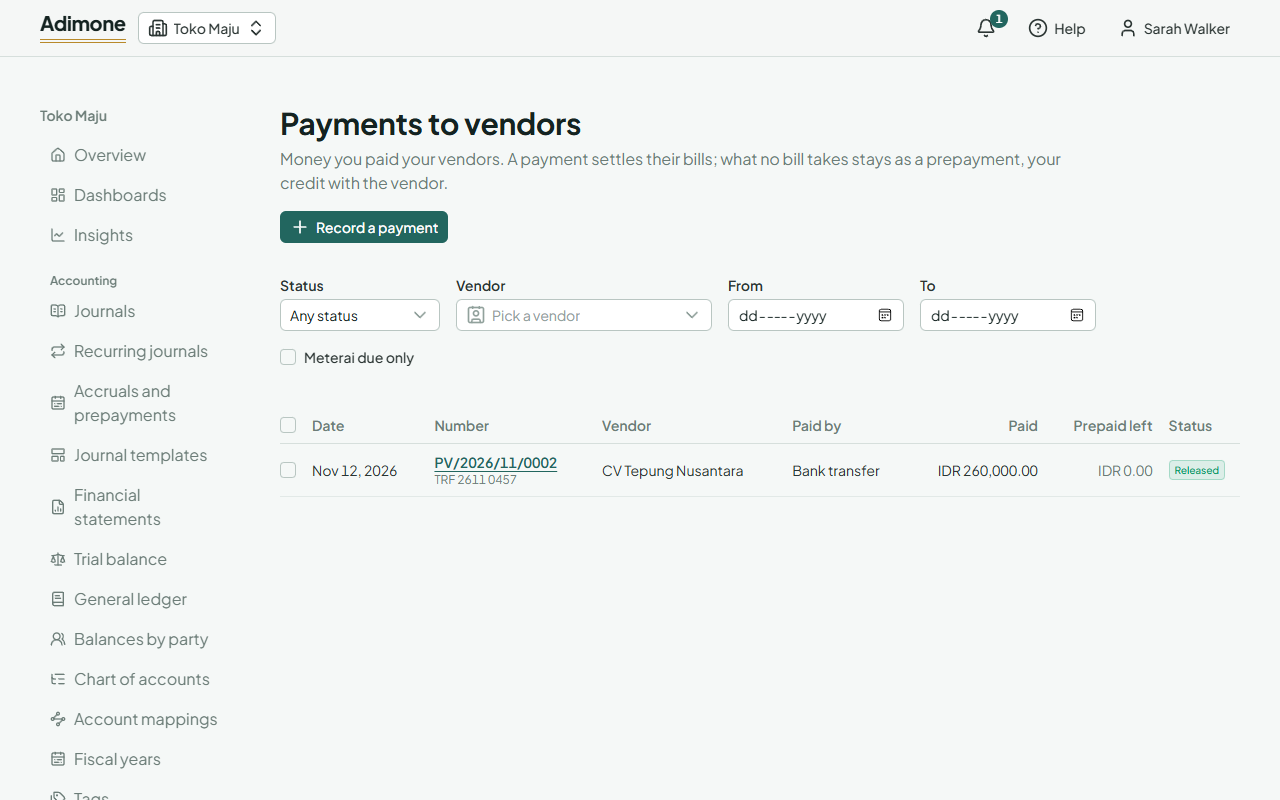
- When the business marks where a meterai is due, a voucher over the threshold shows Meterai due: the vendor signs for the money over the stamp. Tick Meterai due only in the list to find them.
Prepayments and vendor credits
Money that no bill takes yet, such as a deposit before the vendor bills you, stays on the payment as a prepayment. It lowers what you owe the vendor overall, and Prepaid left shows it on the payment and in the list.
To use it later, open the payment and choose Apply prepayment. Pick the day it applies (the bills count as paid from then), type what it pays of each open bill or choose Settle oldest first, then Apply credit.
A debit note works the same way. Posting it takes its amount off its own bill first; when that bill owes less than the debit note, the rest is credit left. Open the debit note and choose Apply to bills to settle the vendor's other bills with it.
Exchange differences on payments
A bill and its payment in a foreign currency usually have different exchange rates. When a payment settles the bill, the difference between the two rates posts as an exchange gain or loss, so what you owe the vendor clears in both currencies. Each payment links to its Exchange difference journal for those who see the ledger.
Reverse a payment
To take a payment off a bill, such as money you put on the wrong bill, choose Reverse beside it on the bill, payment or debit note. Pick the day and give the reason; the owner's review list shows it. The bill owes that amount again and the credit is open again, ready to apply elsewhere. A debit note's own bill stays debited until the debit note is voided.
Void a payment
Void a payment only when the money never left, such as a transfer that bounced. Open it, choose Void payment, pick the day (its own or later) and give the reason. The money comes back into the account in the books and every bill it settled owes again. An issued voucher stays on file.
A bill that a payment or debit note settles can't be voided. Reverse the payment first.