
Send documents to customers
Email an issued document, share a link to it, see what was sent, and export many documents as PDFs at once.
Once a document is issued (a quotation is sent, an order confirmed), it has its number and its PDF and doesn't change. You can then email it, share a link to it, or download it to give it to the customer yourself.
Email a document
- Open the document and choose Send.
- Under To, enter up to 5 addresses, pressing Enter after each. The customer's contacts with an email address show below; choose one to add it.
- Pick the Language. It starts in the customer's language.
- Keep Include a link on to add a link to view and download the document online, and choose how long it works.
- Check the Message as your customer will get it, then choose Send email.
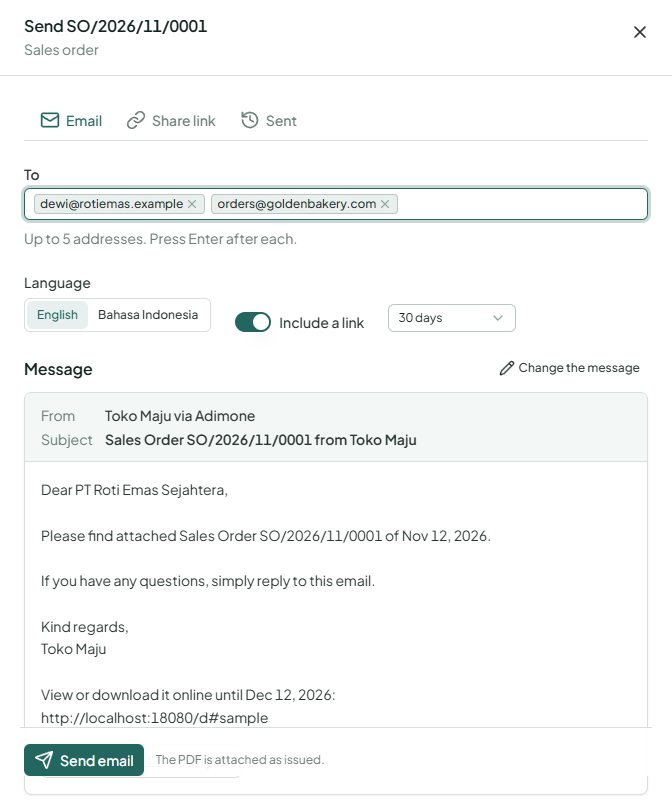
The message is your document email for that kind of document and language, filled in from this document. Change the message changes it for this email only. The PDF goes attached exactly as it was issued.
Sending takes the permission to send that kind of document.
See what was sent
The Sent tab lists every email of the document, newest first: the address, when it went, the language, who sent it and whether it carried a link. An email is Waiting until the mail server takes it, then Sent. A Failed one says why, usually an address the mail server refused. Correct it and send again.
Share a link
A share link opens the document in a browser, without an account, so you can paste it into a chat or a message of your own.
- In Send, open Share link.
- Choose how long it works (7, 30 or 90 days) and Create link.
- Choose Copy. The link is shown only this once; it isn't kept anywhere you can read it again.
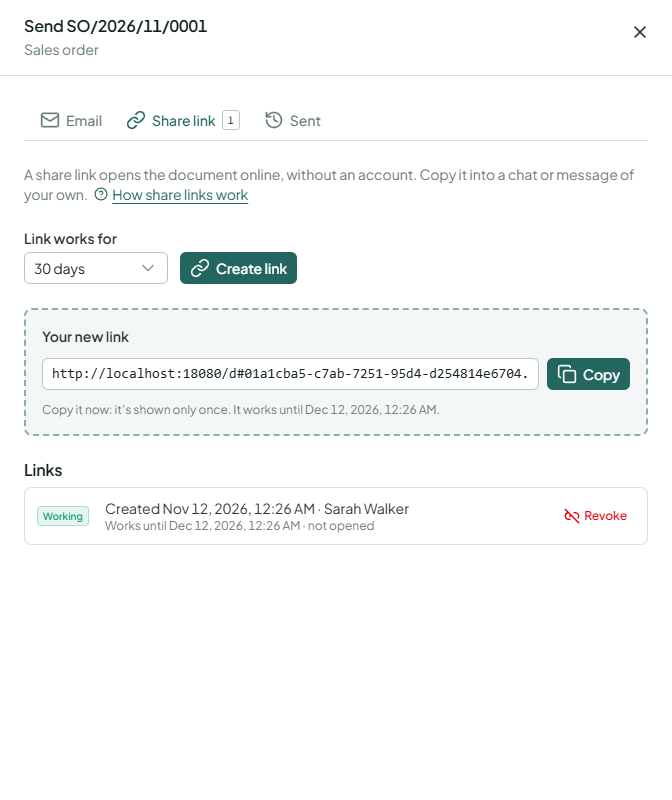
The list shows each link's status, when it stops working and how often it was opened. Revoke stops a link at once; whoever opens it afterwards sees that it no longer works. A document has at most 10 working links. What your customer sees is described in Open a document shared with you.
Download a copy
PDF opens the issued document; Download saves it as issued. Download a copy saves it marked COPY, for your own files or a second print.
Export many as PDFs
- In a list such as Sales orders, tick the issued documents you want, or tick the box at the top for all shown.
- Choose Export as PDF.
- When the batch is ready, choose Download ZIP.
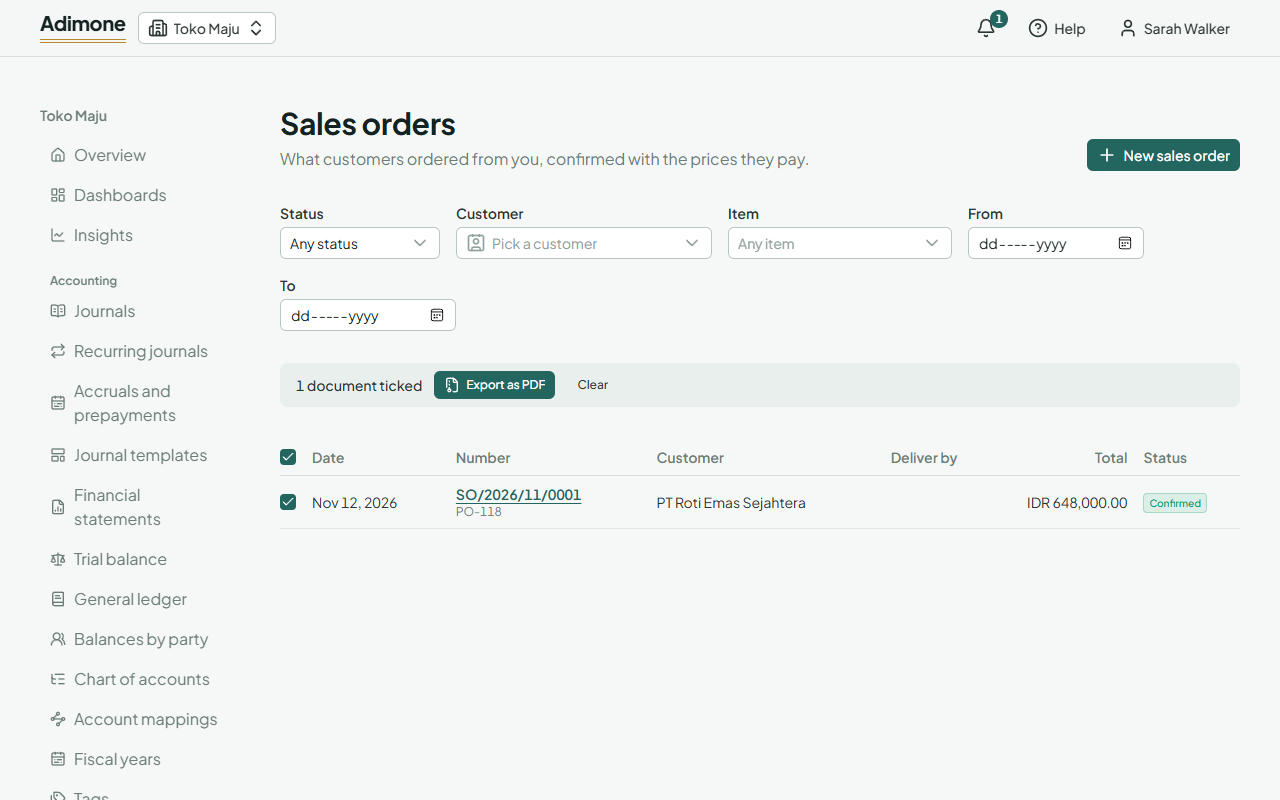
You can export up to 200 documents at once and have a few batches on the way at a time. You can close the window while a batch is made; its download stays for a day.