
Design your documents
Designs for each kind of document: the layout, paper, color, header and footer, what they show and the table's columns, with a live preview.
Each kind of document (quotations, invoices, delivery notes, receipts and the others) prints with a design. Until you add one, a kind uses its built-in design. A kind can have up to 20 designs; its default is used unless a customer or vendor has a design of their own.
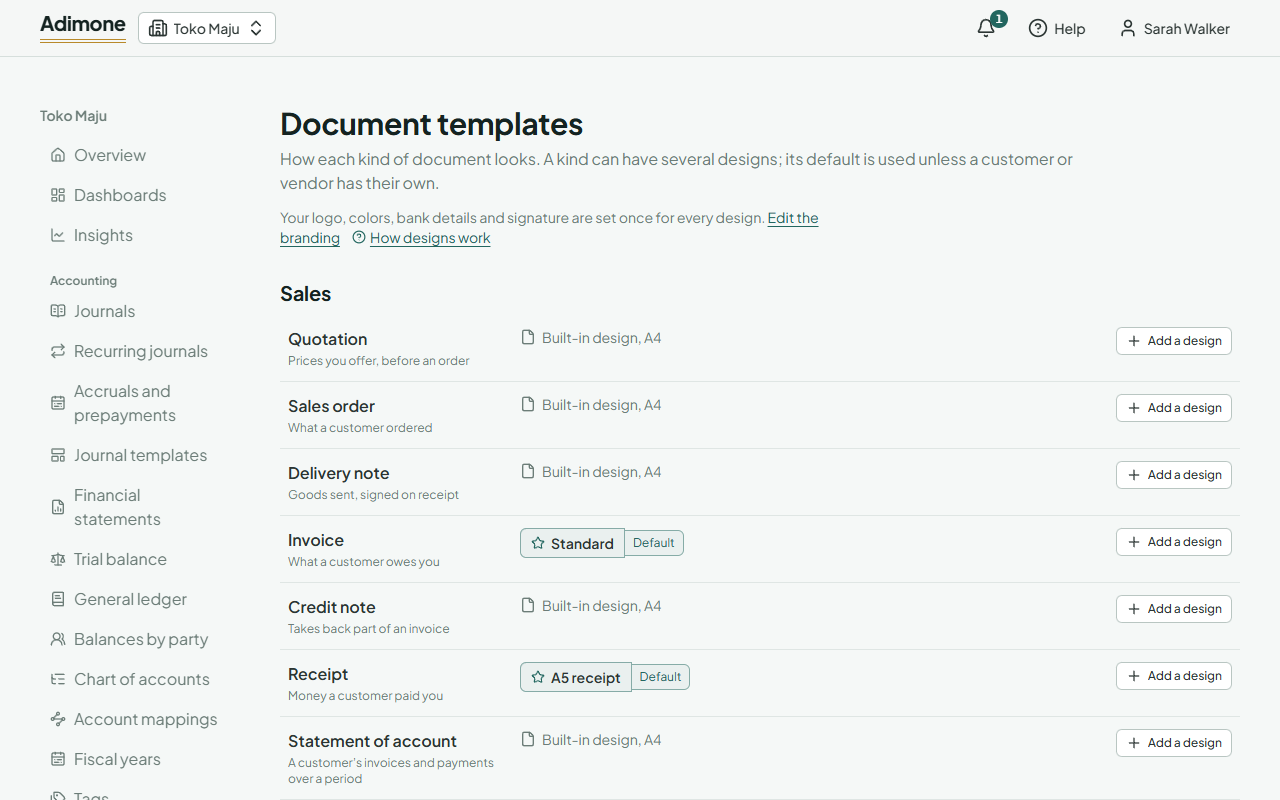
Add a design
- In Documents, open Templates. The kinds of document are grouped by the part of the business that issues them.
- Choose Add a design next to the kind, like Invoice.
- Give it a Name only you see, like Standard or With bank details.
- Make your choices (below) while the Preview follows them, then choose Add design.
The first design of a kind is its default. Adding, changing and deleting designs takes the permission to manage documents.
Design a document
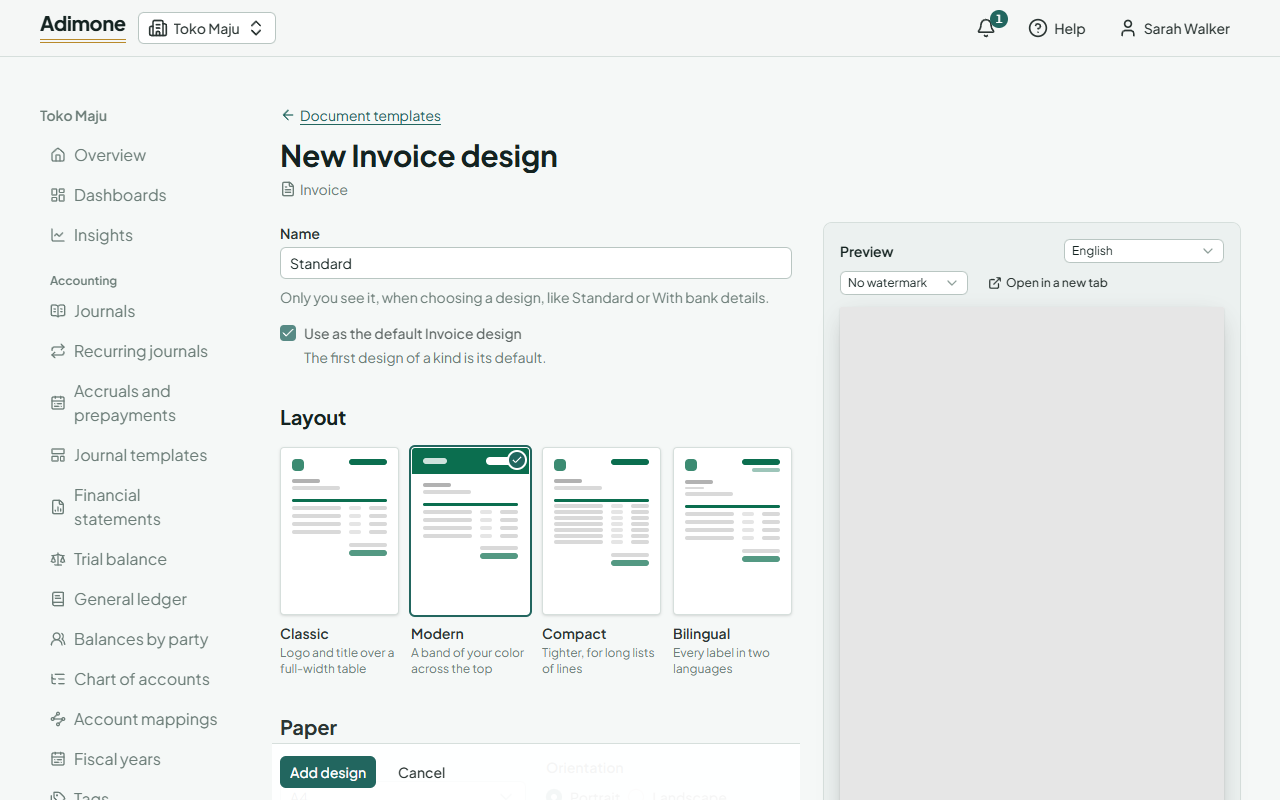
- Layout: Classic puts the logo and title over a full-width table, Modern a band of your color across the top, Compact fits long lists of lines, and Bilingual prints every label in your document language and the second language of the branding.
- Paper: A4, Letter, F4 (folio), A5, or a receipt roll of 58 or 80 mm for a till printer. A sheet can be Portrait or Landscape. Set my own margins takes margins of up to 50 mm; off, the paper's usual ones apply.
- Color, logo and text: Its own accent color instead of the branding's, the Logo size and Logo place, a Header printed at the top of every page and a Footer at the bottom, like a registration number or a thank-you.
- What it shows: untick the parts this design leaves out, such as the bank details, the amount in words or the stamp, and the details beside the title, such as the due date. Your custom fields of customers, vendors and items are listed too (Custom fields). A part with nothing in it is left out anyway.
Above the preview, choose its language and a watermark (Draft, Paid, Void, Copy) to see how a document looks with them. The preview is a sample with your branding and your next number; Open in a new tab shows it full size, which also works on phones.
Columns and labels
Table columns lists the columns of the kind's table. Untick the ones to leave out and move the others up or down to change their order. A label replaces a column's usual name: Total for Amount, for example. On a bilingual design, each column has a label for each language. One column always stays.
The default and a customer's own design
- On Templates, Make default next to a design makes it the kind's default; the old default stays as another design.
- Open a customer or vendor and pick a design under Document designs to use it for their documents of that kind instead. It applies at once. See Customers and vendors.

Change or delete a design
Open a design, change it and choose Save changes. Documents already issued keep their look; new ones use the change. Delete removes a design while no customer or vendor uses it. When the default is deleted, the kind uses its built-in design until you make another one the default.
Every change is in the design's History, where it can be undone (Change history and undo). Your logo, color, bank details and signature are set once in the branding.
A document's number comes from its kind's numbering, and the email it is sent with from the document emails.