
Write your document emails
The subject and message each kind of document is emailed with, in English and Indonesian, with parts filled in from the document.
When you email a document, it goes with a message and the document attached as a PDF. Each kind of document has its own email in each language; until you write yours, a short default one is used. The email goes in the customer's or vendor's language, and you can still change it when you send.
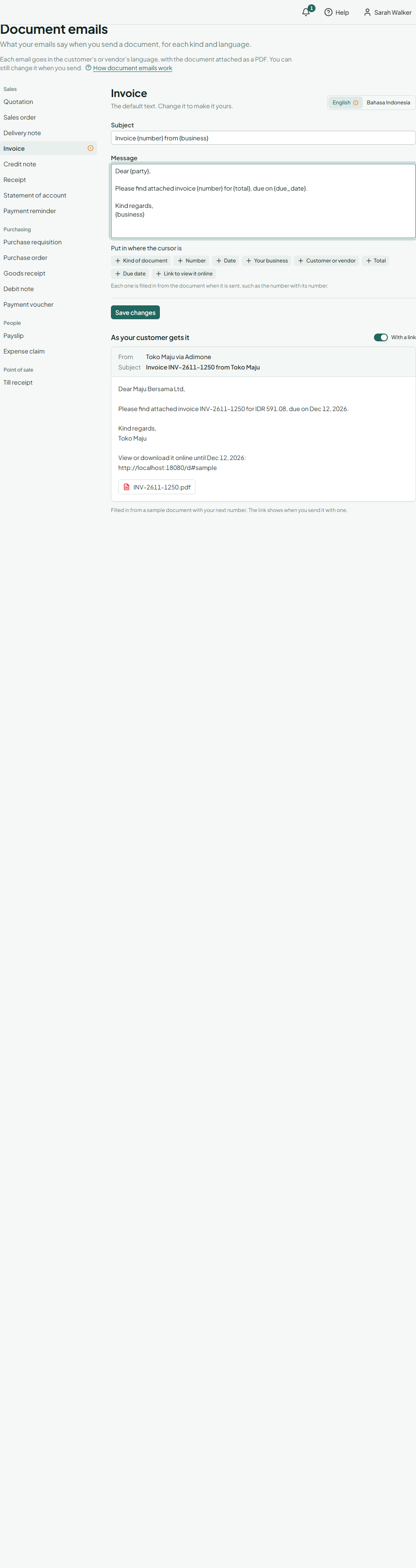
Change an email
- In Documents, open Emails.
- Pick the kind of document, then the language: English or Bahasa Indonesia.
- Write the Subject and the Message. Use Put in where the cursor is to add a part that is filled in from the document.
- Check the email beside it, as your customer gets it, and choose Save changes.
Changing an email takes the permission to manage documents. Kinds with your own text are marked in the list; text you haven't saved yet is marked too, and stays while you look at other kinds.
The parts you can put in
| Part | Writes | Filled in with |
|---|---|---|
| Kind of document | {document} |
Invoice, Quotation, … in the email's language |
| Number | {number} |
The document's number |
| Date | {date} |
Its date |
| Your business | {business} |
Your business's name |
| Customer or vendor | {party} |
Who it is for |
| Total | {total} |
Its total, as printed |
| Due date | {due_date} |
Its due date (empty on documents without one) |
| Link to view it online | {link} |
A link to see and download it online |
Anything else in curly brackets is refused. The subject is one line of at most 200 characters; the message at most 4,000.
With a link
When you send a document with a link, the email carries a link to view and download it online for 30 days. Without {link} in the message, the link is added at the end. Turn With a link on or off above the preview to see both.
Back to the default
Back to the default puts the default text back for that kind and language. Every change is in the email's History, where it can be undone (Change history and undo).