
Sign in and out
Sign in with your email address and password, confirm with your second step, and sign out when you're done.
Sign in
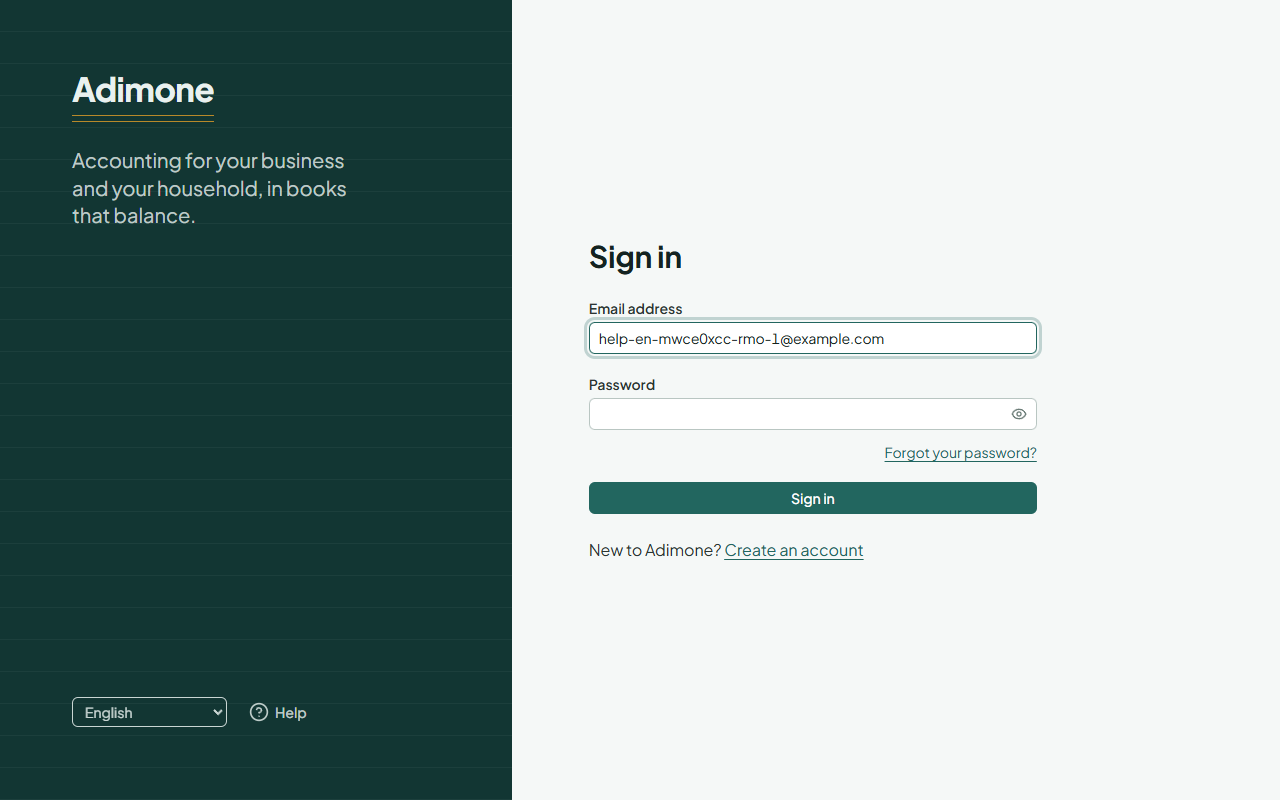
Open Sign in, enter your email address and password and choose Sign in.
If your account has two-step verification, the next page asks you to confirm it's you: enter the 6-digit code from your authenticator app, or use your passkey. Under Other ways you can switch methods, or use one of your recovery codes if you've lost your phone.
After signing in you land in your last workspace. Use the workspace switcher at the top to move between your personal space and your businesses.
Sign out
Open the menu with your name at the top right and choose Sign out. Do this on shared or public computers. To sign out a device you can't reach, see Devices and sessions.
When you're signed out by yourself
For your safety, Adimone signs you out:
- after 30 minutes without activity, and at the latest 12 hours after you signed in;
- on every device when your password is changed or reset;
- when the browser or operating system of a session suddenly changes, which can mean someone copied it.
Trouble signing in
- Wrong email address or password: the message never says which one is wrong. Check both, or reset your password.
- Too many attempts: after five wrong attempts, signing in pauses for a minute, then longer with each further attempt (at most an hour). Wait, then try again, or reset your password.
- Lost your phone and your recovery codes: contact support from the address of your account.