
Turn on two-step verification
Add an authenticator app so a stolen password alone can't open your account, and keep your recovery codes safe.
With two-step verification, signing in asks for your password and a second step: a code from an app on your phone, or a passkey. Someone who learns your password still can't get in. We strongly recommend it for everyone who keeps a business's books.
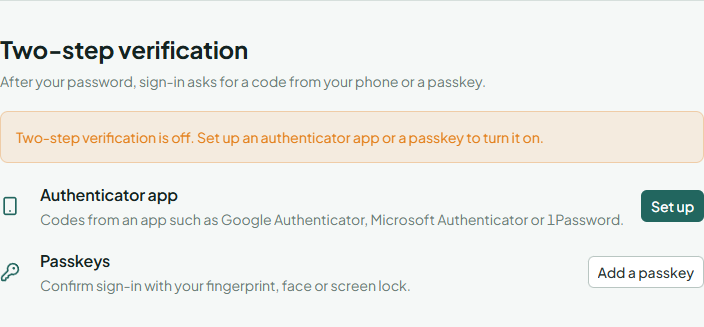
Go to Account and security and find Two-step verification.
Set up an authenticator app
You need an authenticator app on your phone, such as Google Authenticator, Microsoft Authenticator or 1Password.
- Next to Authenticator app, choose Set up and enter your password.
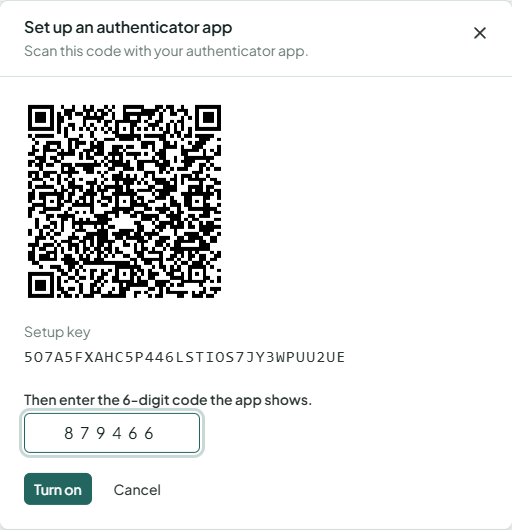
- Scan the QR code with the app. If you can't scan it, choose Can't scan it? Type the key instead and type the setup key into the app.
- Enter the 6-digit code the app shows and choose Turn on.
Save your recovery codes
Right after you turn it on, Adimone shows 10 recovery codes. Each one lets you sign in once if you lose your phone or passkey.
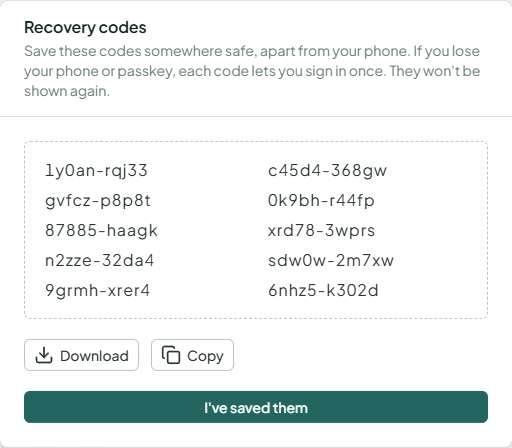
Download or Copy them and keep them somewhere safe, apart from your phone (for example in a password manager or printed in a drawer). They won't be shown again. Then choose I've saved them.
When you run low, choose Get new codes: the old ones stop working.
Signing in from now on
After your password, enter the current code from the app. Each code works once and changes every 30 seconds. On a new phone, set up the app again first (remove the old one, then Set up).
Turning it off
Removing your only second step turns two-step verification off and your recovery codes stop working. We send an email whenever a second step is added or removed.