
Change your email address or password
Update your profile, move your account to another address and change your password.
Open the menu with your name at the top right and choose Account and security.
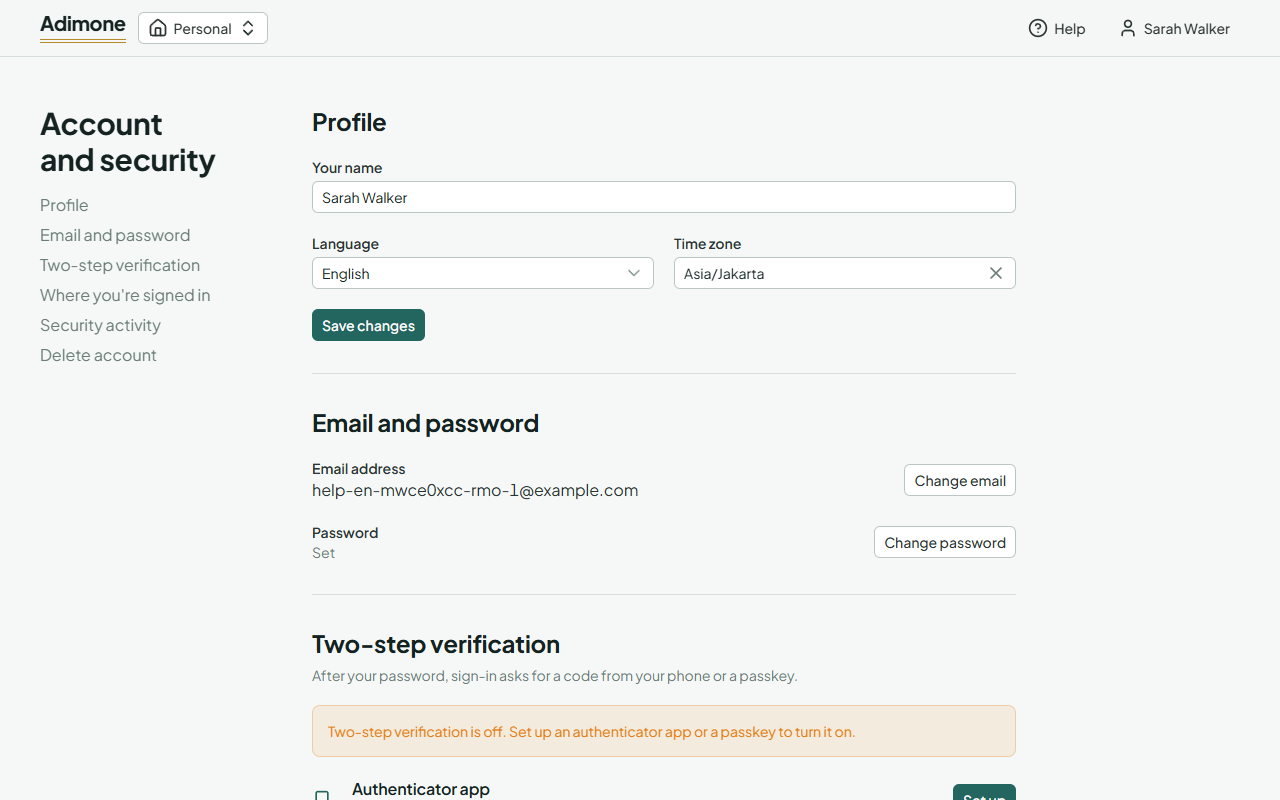
Your profile
Under Profile you set the name people see, the language of the app and of the emails we send you, and your time zone. Choose Save changes.
Change your password
- Under Email and password, choose Change password.
- Enter your current password, then the new one twice (at least 12 characters, not one of your last five).
- Choose Change password.
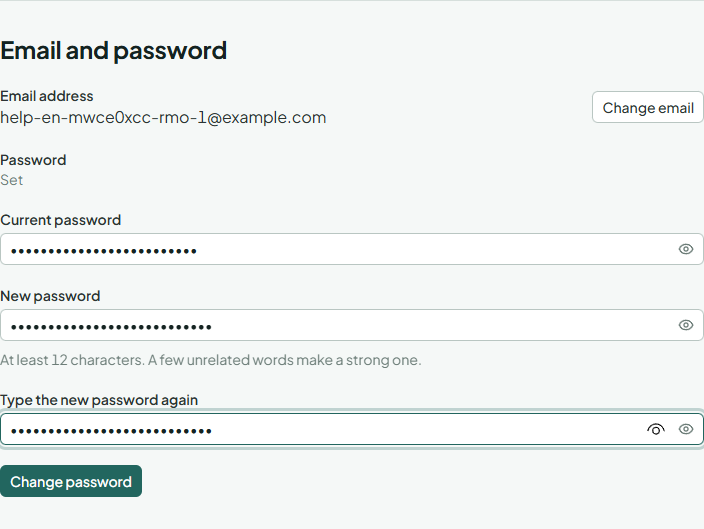
Your other devices are signed out. We email you that the password changed; if it wasn't you, the email has a "this wasn't me" link.
If you signed up with Google and have no password, the button says Set a password, and Google confirms it's you first.
Change your email address
- Under Email and password, choose Change email.
- Enter the new address and your password, then choose Send confirmation link.
- Open the link we send to the new address. The change happens only then.
Until you confirm, you keep signing in with the current address, and the page shows which address is waiting. Your current address gets a notice with a link to cancel the change. After the change, the old address gets one more notice, with a "this wasn't me" link that moves the account back.