
Adjust, transfer and count stock
Enter opening stock, write off damaged goods, move stock between warehouses and post a stock count, then void a document to take it back.
Stock changes by hand through three kinds of stock document. Each starts as a draft, changes nothing until you post it, and gets its number when posted.
| Document | Use it to | Number |
|---|---|---|
| Adjustment | Add or take out stock: opening stock, stock found, damaged, expired, lost or stolen goods, corrections. | ADJ-000001 |
| Transfer | Move stock from one warehouse to another. | TRF-000001 |
| Stock count | Record what you counted; posting adjusts each counted item to it. | CNT-000001 |
Sales, purchases and the till will move stock on their own once they arrive in the app.
Adjust stock
- In Inventory, open Stock documents, choose New and then Adjustment.
- Pick the Date, the Warehouse and a Reason. Damaged, Expired, Lost and Stolen write the stock off as a loss; Other needs a note saying what happened.
- On each line pick an Item kept in stock, its Unit and the Quantity: a positive quantity adds stock, a negative one (like -3) takes it out. The line says whether it comes in or goes out.
- If you see purchase prices, enter the Unit cost of stock coming in, such as your opening stock. Leave it empty to use the average cost on hand (or the last cost, or the item's purchase price).
- Choose Post, or Save draft to finish later.
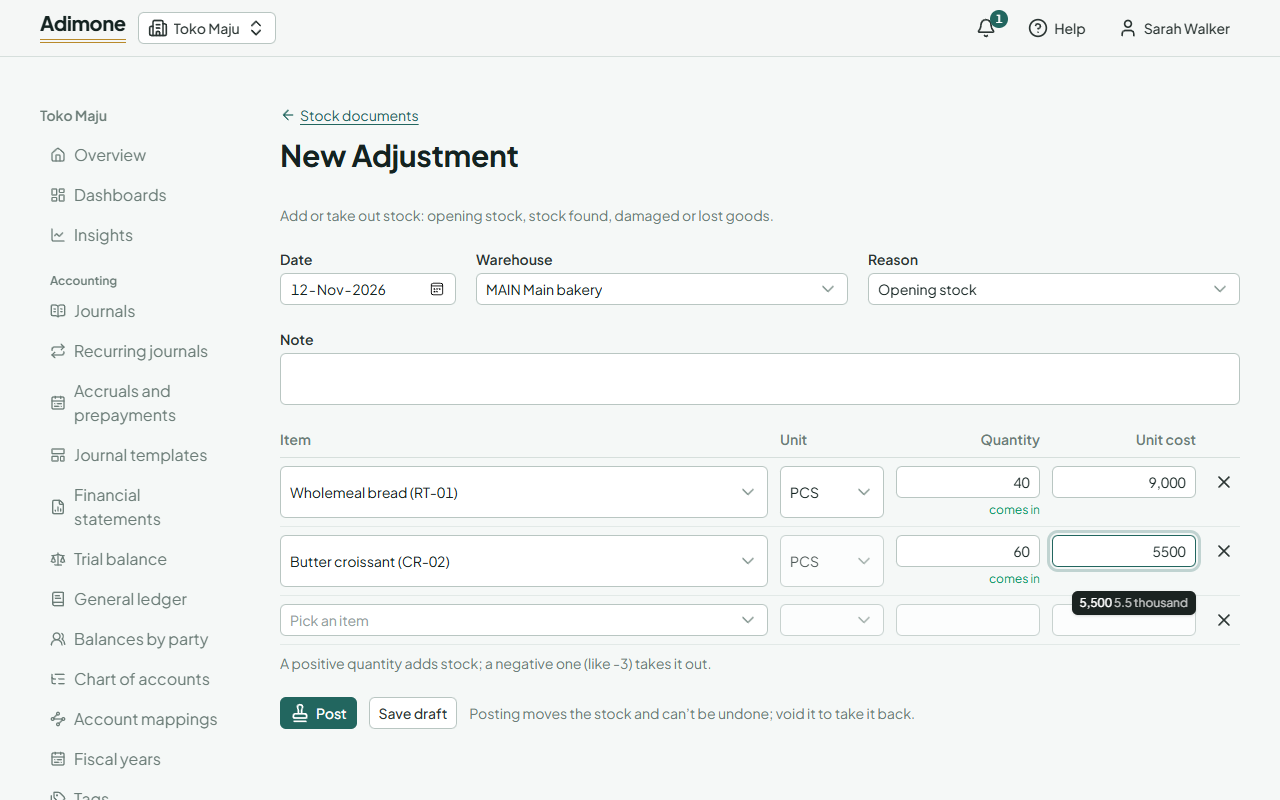
To enter your opening stock, make one adjustment with the reason Opening stock and every item's quantity and cost on the day you start.
Move stock between warehouses
Choose New and then Transfer, pick the warehouse it goes From and the one it goes To, then the items and quantities. Posting takes the stock out of one and into the other at once, at the cost it had. Transfers need the permission to manage them, apart from adjusting stock.
Count stock
- Choose New and then Stock count, and pick the warehouse and the day you count.
- Turn on Add every item in this warehouse to get a line for each item it has held, then Save draft. You can also add items one by one.
- Enter what you find on each line as you count. A line left empty isn't counted and changes nothing; enter 0 for an item that's gone.
- Choose Post. Each counted item is adjusted by the difference between what you counted and what was on hand when you counted it, so sales made while you count stay as they are.
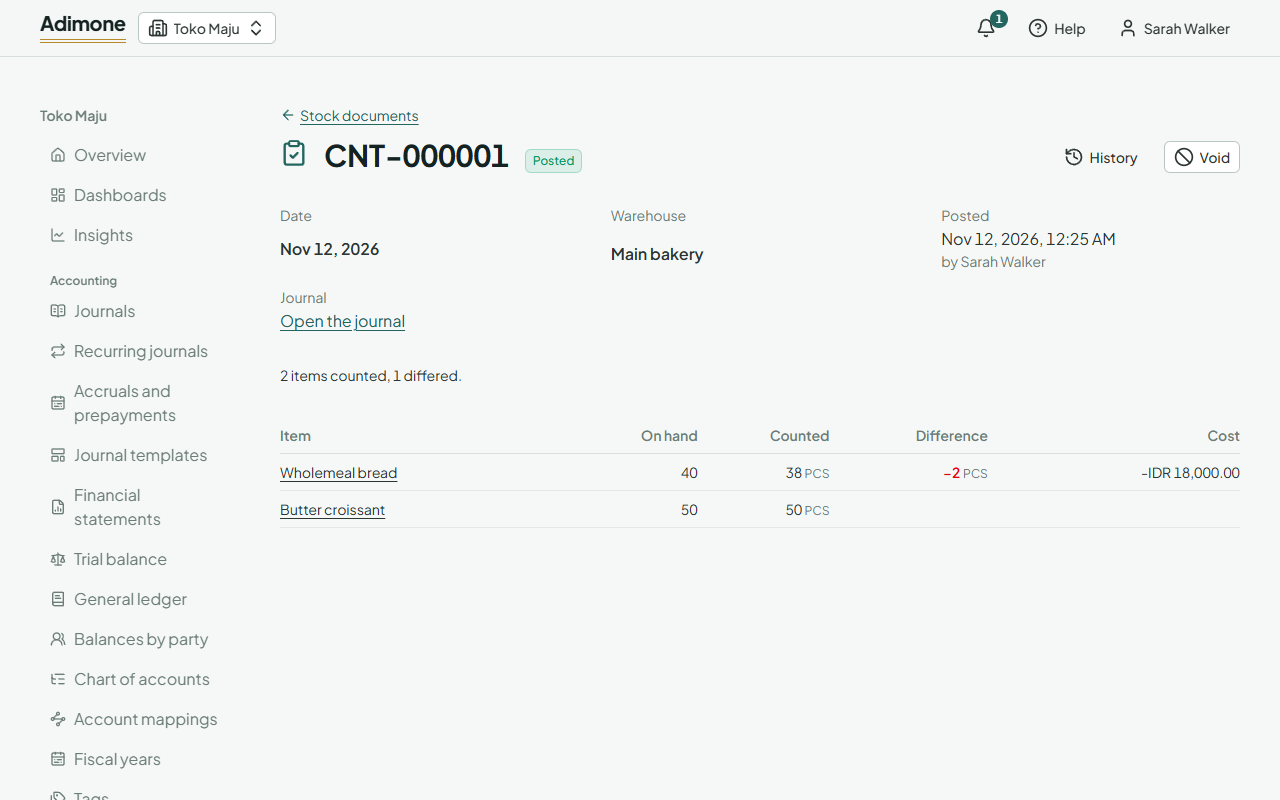
The posted count shows each item's On hand, Counted and Difference, and how many items differed.
Post or void
- Posting moves the stock, numbers the document and, for adjustments and counts, posts the journal of the value that changed (open it from Journal: How stock is costed). The date must fall in one of your fiscal years and be open in your books. Stock can't go below zero: a line that takes out more than is on hand is refused and says how much there is.
- A posted document can't be changed. To take it back, choose Void, pick the day (its own date or later) and give a reason. Its stock moves back and its journal is reversed. A void that would leave less than nothing on hand is refused: void the later documents first.
- A draft can be changed or deleted by whoever may prepare that kind of document.
Who prepares and who posts can be different people: preparing adjustments, counting and posting are separate permissions. When your business has turned on checks by someone else for stock adjustments, the person who prepared or counted can't post it; they choose Send to someone who can check it. Your owner's review list shows adjustments, write-offs and voids with their value.