
Set up payment terms
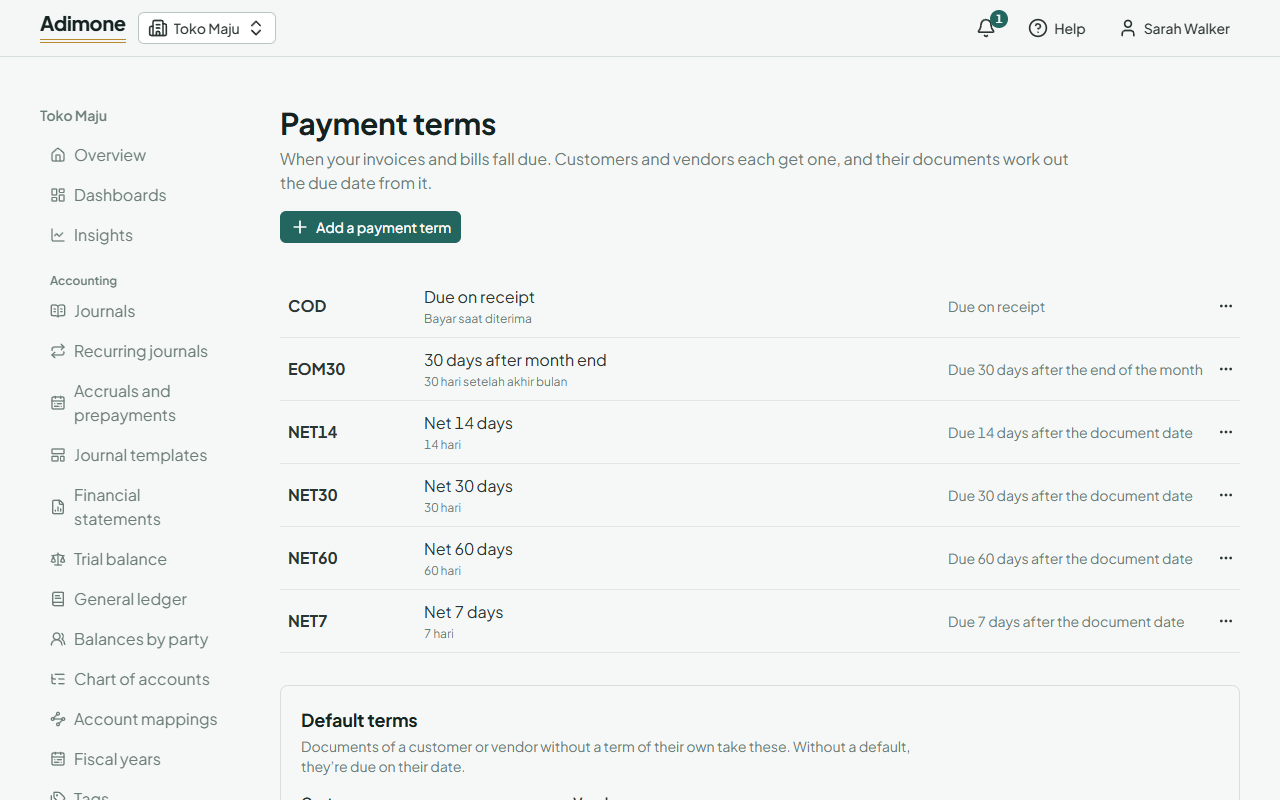
When your invoices and bills fall due, counted from the document's date or from the end of its month.
A payment term says when a document falls due. Each customer and vendor gets one for sales and one for purchases, and their invoices and bills work out the due date from it.
Start with the common terms
On an empty Payment terms page, choose Add the common terms. It adds cash on delivery, 7, 14, 30 and 60 days, and 30 days after the end of the month, named in the app's language with the other language as a translation. Terms you already have by those codes are left as they are.
Add your own
- Choose Add a payment term.
- Enter a short Code (like NET45) and the Name documents show.
- Under Counted from, pick The document's date or The end of its month, and enter the Days.
- Check the example under it, then choose Add payment term.
| Counted from | Days | A document dated 15 March is due |
|---|---|---|
| The document's date | 0 | 15 March (on receipt) |
| The document's date | 30 | 14 April |
| The end of its month | 0 | 31 March |
| The end of its month | 30 | 30 April |
A business can have up to 50 payment terms. Only people who manage accounting can add or change them; everyone else can see them.
Default terms
Under Default terms, pick the term that documents of customers, and of vendors, take when the customer or vendor has none of their own. Without a default they're due on their date. A default that is deactivated stops applying until it's active again. Only people who manage accounting can change the defaults.
Change, deactivate or delete
Use the ⋯ menu next to a term:
- Change edits it. Documents keep the due dates they already worked out.
- Deactivate keeps it on the customers, vendors and documents that have it, but it can't be picked again. Reactivate brings it back.
- Delete removes a term nothing uses.